
Follow the steps below to create a new linked account.
Step 1: Access the Company Dropdown- Log in to your PaidHR account.
- Navigate to the top-left corner of your dashboard, where your company's name is displayed.
- Click the dropdown arrow beside your company's name.
- From the dropdown menu, select + Add New Business.
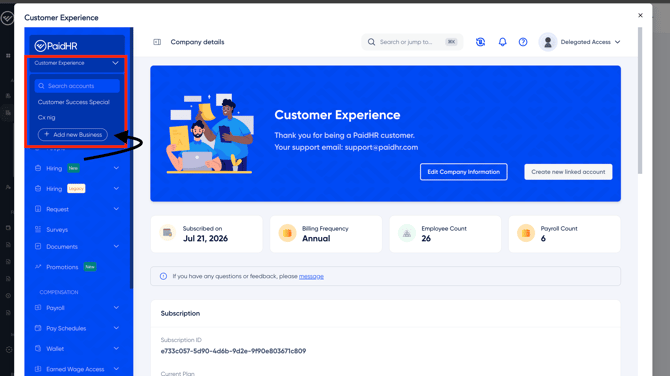
This will take you to the Create New Linked Account page.
Step 2: Enter the New Company DetailsOn the Create New Linked Account page, complete the following fields:
- Company Name (Required): Enter the name of the business you want to add.
- Legal Name (Optional): Enter the company's registered legal name, if applicable.
- Country (Required): Select the country where the business is registered.
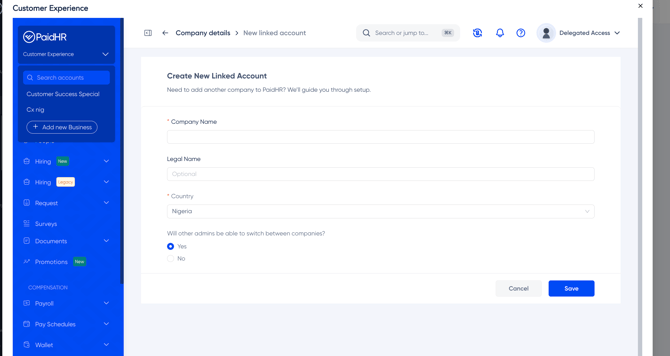
Under the company details, you will see the question:
Will other admins be able to switch between companies?
Select one of the following options:
- Yes: Allows other administrators to switch between the linked companies.
- No: Restricts other administrators from switching between companies.
Select the option that best suits your organisation's access requirements.
Step 4: Submit for Approval
- Review the company information entered to ensure all details are correct.
- Click Save to submit the request.
- Once submitted, the request will be forwarded to PaidHR for review and approval.
- The new company will be subject to PaidHR's approval before the linked account can be created and made available for use.
Important: Saving the form submits a request for approval; it does not mean the new company has been automatically approved.