---
title: How to create custom fields on PaidHR
description: "Custom Field\nHow to add additional employee information"
---
[Skip to content](https://support.paidhr.com/how-to-create-custom-fields-on-paidhr#main-content)
English
Show submenu for translations

- Home
- Products
- Pricing
- Blog
- Company
Open main navigation
Close main navigation
- Home
- Products
- Pricing
- Blog
- Company
- English
Show submenu for translations
- Contact us
Contact us
How can we help you?
- There are no suggestions because the search field is empty.
1. [PaidHR Help Centre](https://support.paidhr.com/)
2. [Settings](https://support.paidhr.com/settings)
# How to create custom fields on PaidHR
## This article describes how to create custom fileds on PaidHR
Custom fields on PaidHR allow you to add additional information that is unique to your organization’s needs. You can either create a single custom field or upload multiple fields at once using the bulk upload feature. This guide will walk you through the steps to create custom fields to capture specific employee details.
#### **Adding a Single Custom Field**
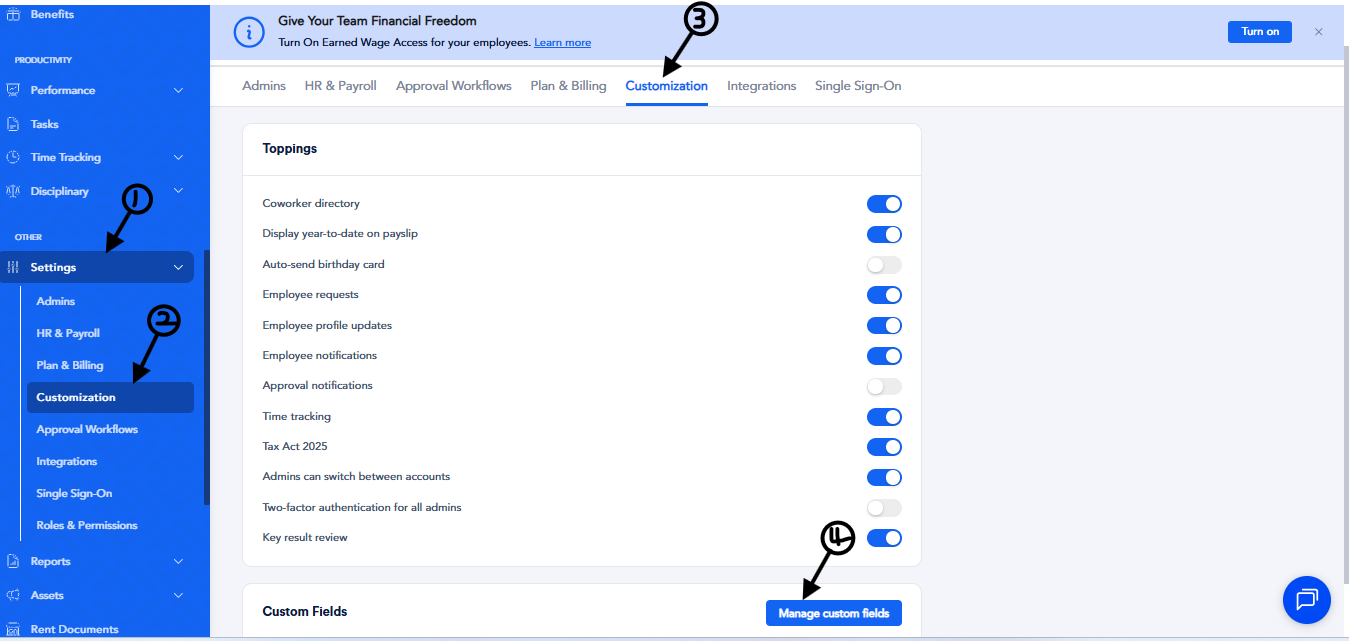
- Navigate to the **Menu** and click on the downward arrow next to **Settings** to reveal additional options
- Select **Customization**, then scroll to **Custom Fields** and click **Manage Custom Fields**..
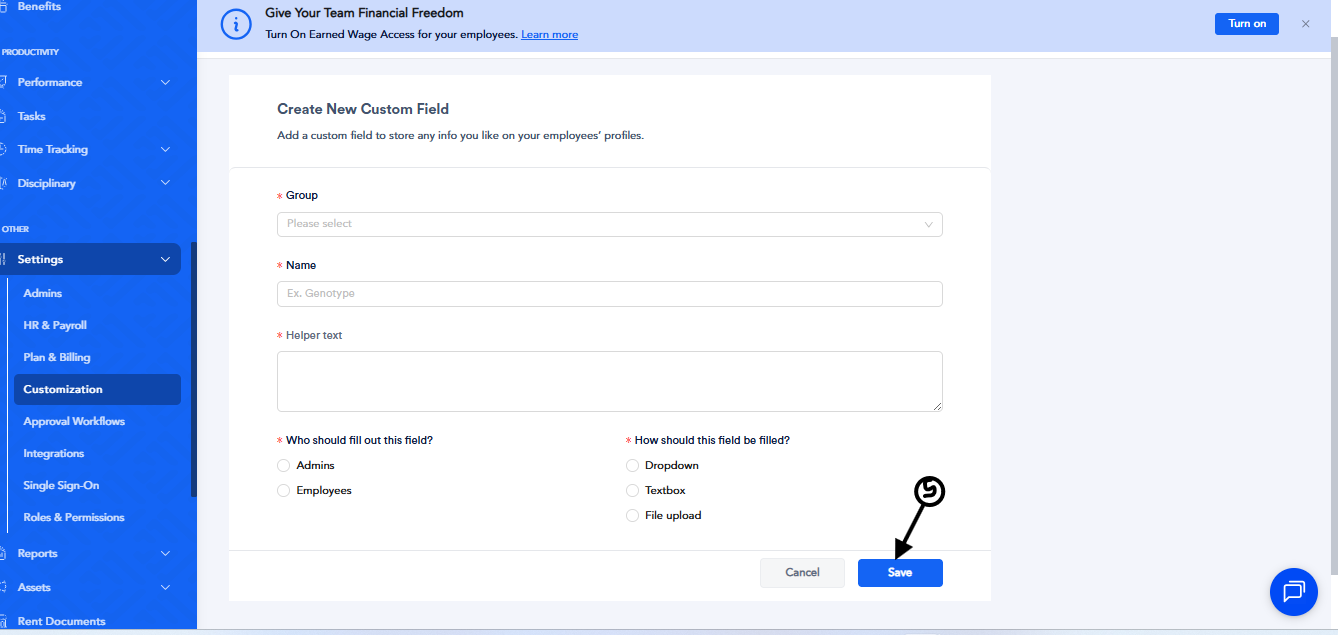
- Enter the **Group Name to categorize related information.** For example,**Medical Information** as the group name with fields like **Genotype**.
- Enter the **Field Name** to specify the exact information to be collected, such as **Genotype**, or **Degree**.
- Enter the **Helper text** to provide more details about the field.
- Specify whether the field is for Employees or Admins.
- Select the field type (e.g., text, dropdown, file upload).
- Click **Save** to create the custom field.
#### **Bulk Uploading Custom Field**
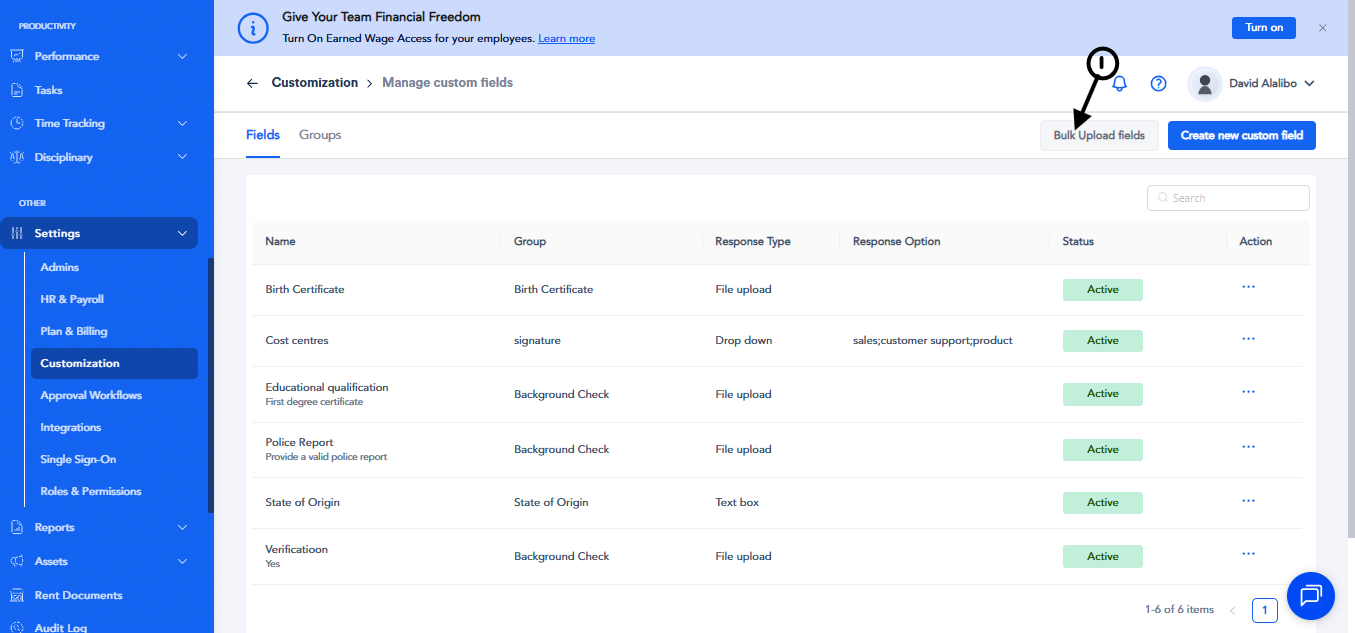
- Click **Bulk Upload Fields**.
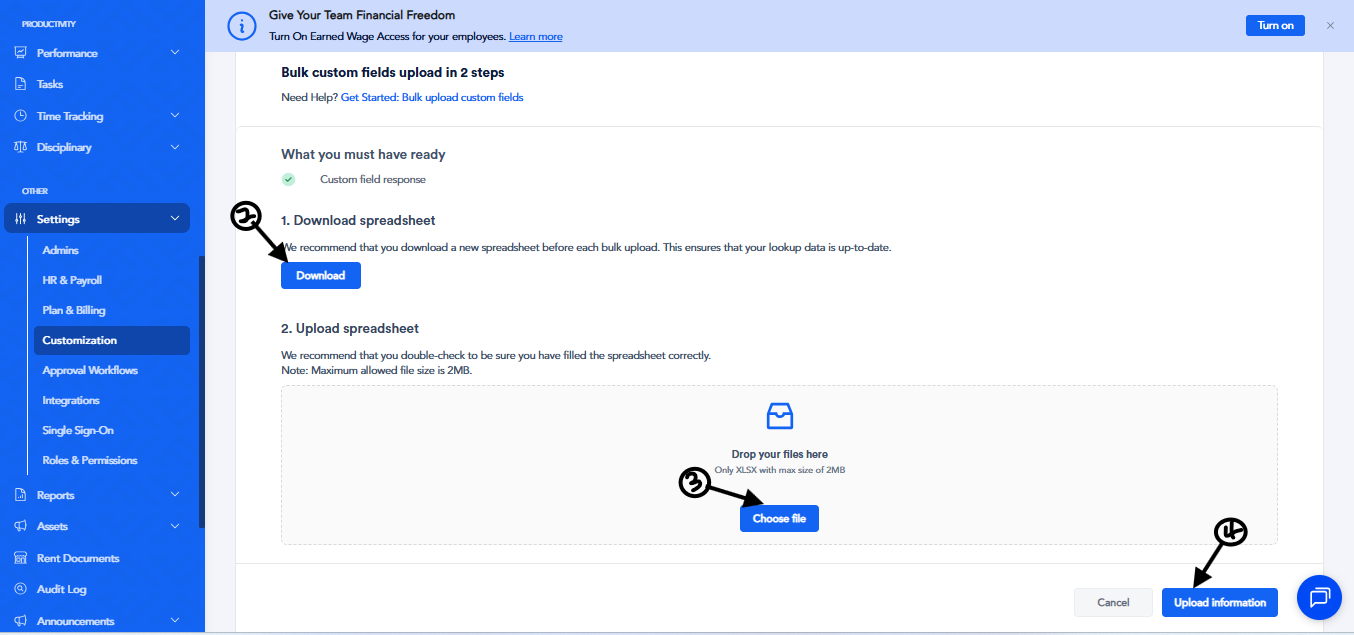
- Download the provided template.
- Fill out the template with the custom field details.
- Upload the completed template..
- Click on **Upload information** to finalize the upload.
- [Getting started](https://support.paidhr.com/getting-started)
- [Admins: Start Here](https://support.paidhr.com/admins-start-here)
- [Employees: Start Here](https://support.paidhr.com/employees-start-here)
- [Payroll](https://support.paidhr.com/payroll)
- [Payroll Management](https://support.paidhr.com/payroll-management#main-content)
- [Payroll Changes](https://support.paidhr.com/payroll-management#payroll-changes)
- [Allowances](https://support.paidhr.com/payroll-management#allowances)
- [Statutory Remittance](https://support.paidhr.com/payroll-management#statutory-remittance)
- [Amend Payroll](https://support.paidhr.com/payroll-management#amend-payroll)
- [Cross-Border Payments](https://support.paidhr.com/cross-border-payments)
- [Earned Wage Access (EWA)](https://support.paidhr.com/earned-wage-access-ewa)
- [Loan Marketplace](https://support.paidhr.com/loan-marketplace)
- [Settings](https://support.paidhr.com/settings#main-content)
- [Confirmation](https://support.paidhr.com/settings#confirmation)
- [People](https://support.paidhr.com/people#main-content)
- [Onboarding](https://support.paidhr.com/people#onboarding)
- [Leave](https://support.paidhr.com/people#leave)
- [Exit](https://support.paidhr.com/people#exit)
- [Cantractor](https://support.paidhr.com/people#cantractor)
- [HRIS](https://support.paidhr.com/people#hris)
- [Request](https://support.paidhr.com/request#main-content)
- [Leave](https://support.paidhr.com/request#leave)
- [Exit](https://support.paidhr.com/request#exit)
- [Loan](https://support.paidhr.com/request#loan)
- [Performance Management](https://support.paidhr.com/performance-management#main-content)
- [Setting Up Performance Module](https://support.paidhr.com/performance-management#setting-up-performance-module)
- [Company Gaols](https://support.paidhr.com/performance-management#company-gaols)
- [Departmental Objectives](https://support.paidhr.com/performance-management#departmental-objectives)
- [Key Result](https://support.paidhr.com/performance-management#key-result)
- [Review](https://support.paidhr.com/performance-management#review)
- [Questionnaires](https://support.paidhr.com/performance-management#questionnaires)
- [Performance Management Glossary](https://support.paidhr.com/performance-management#performance-management-glossary)
- [Reports](https://support.paidhr.com/reports)
- [Benefits](https://support.paidhr.com/benefits)
- [Documents](https://support.paidhr.com/documents)
- [Assets](https://support.paidhr.com/assets)
- [Wallet](https://support.paidhr.com/wallet)
- [Time Tracking](https://support.paidhr.com/time-tracking)
- [Payslip](https://support.paidhr.com/payslip)
- [PaidHiring](https://support.paidhr.com/paidhiring)
- [Employee Wallet](https://support.paidhr.com/employee-wallet)
- [Disciplinary](https://support.paidhr.com/disciplinary)
- [Tasks](https://support.paidhr.com/tasks)
- [Loan](https://support.paidhr.com/loan)
- [Survey](https://support.paidhr.com/survey)
- [Salary Advance](https://support.paidhr.com/salary-advance)
- [Time & Attendance](https://support.paidhr.com/time-attendance#main-content)
- [Setting up Time & Attendance](https://support.paidhr.com/time-attendance#setting-up-time-attendance)
- Home
- Products
- Pricing
- Blog
- Company
[](http://paidhr.com)
**PaidHR Help Center**
[mailto:support@paidhr.com](mailto:support@paidhr.com)
Copyright © 2026, PaidHR