
Follow the steps below to generate and download a leave report.
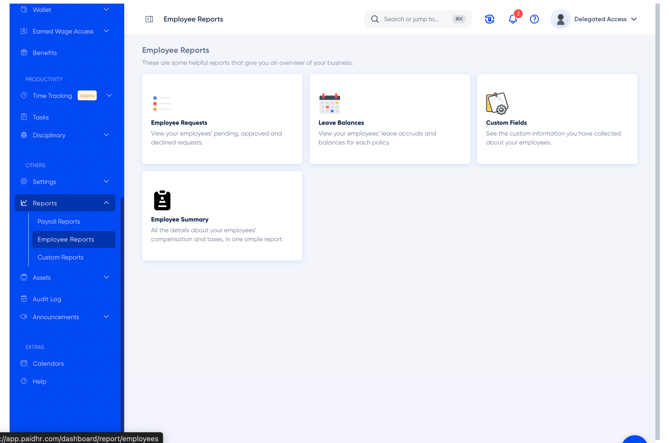
Step 1: Navigate to Employee Reports- Log in to your PaidHR account.
- From the sidebar menu, navigate to Reports.
- Select Employee Reports.
- On the Employee Reports page, locate and select the Employee Requests report.
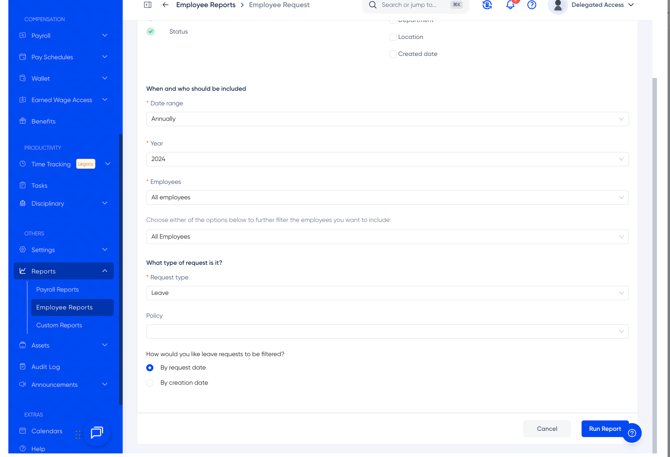
On the Employee Request Report page, you will find options to customise the information included in your report.
Select the report information
The following fields are included by default:
- Employee name
- Request details
- Status
You can also select additional information to display:
- Employee number
- Department
- Location
- Created date
Tick the optional fields you would like to include in your report.
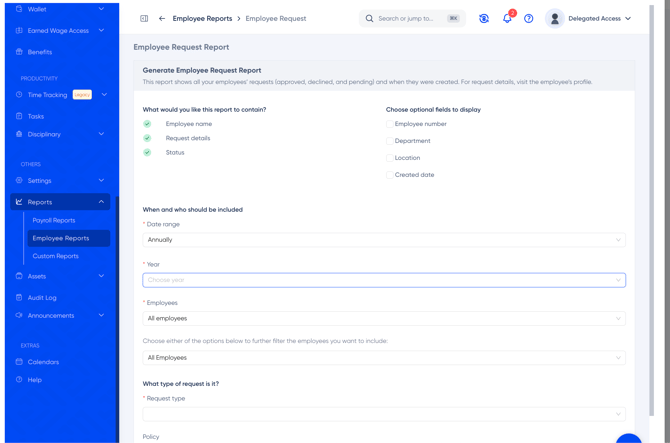
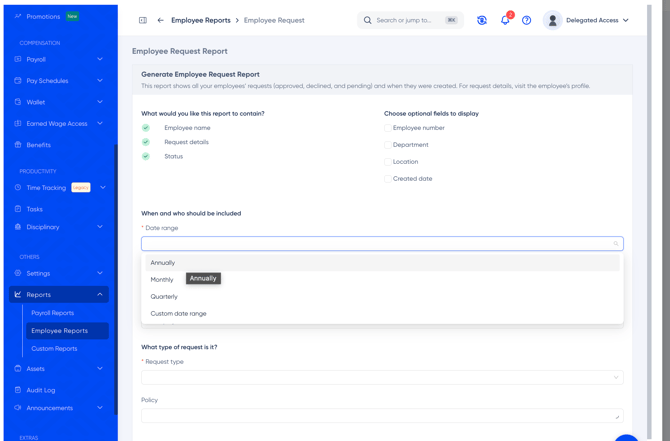
Under When and who should be included, select your preferred date range.
The available options are:
- Annually
- Monthly
- Quarterly
- Custom date range
Depending on your selection, provide the relevant date or period.
For an annual report, select the year you want to retrieve. The available years will be displayed in the dropdown.
Under Employees, select the employee group you want to include in the report.
The default selection is All employees.
You can further filter the employees using the additional employee selection field below it.
Under What type of request is it?, configure the following:
- Request type: Select Leave from the dropdown.
- Policy: Select the specific leave policy you want to report on, if applicable.
For example, you can select a particular leave policy to generate a report containing requests associated with that policy.
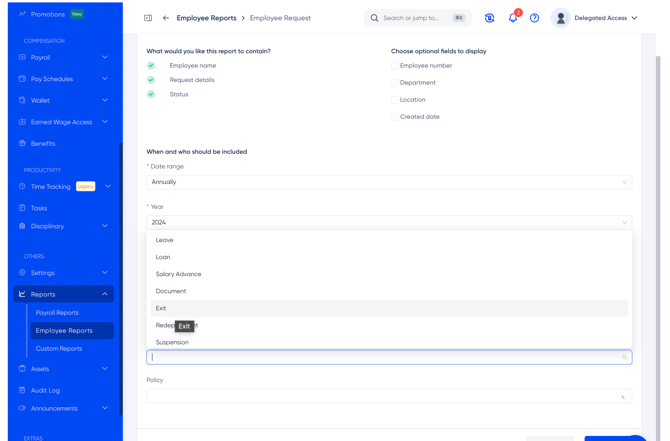
After selecting Leave as the request type, you will see the option:
How would you like leave requests to be filtered?
Select your preferred filtering option:
- By request date: Filters requests based on the date of the leave being requested.
- By creation date: Filters requests based on when employees submitted the requests.
Choose the option that best suits the information you want to retrieve.
Step 7: Generate the Report- Review your selections to ensure the report contains the correct information.
- Click Run Report at the bottom-right corner of the page.
- Allow the system to generate your report.
Once the report has been generated, download the report from the available report results.
You can then open the downloaded file to review employee leave requests and their respective statuses.
- Ensure you select Leave as the request type when generating a leave report.
- Use By request date when you want to review leave requests based on the actual leave dates.
- Use By creation date when you want to track when employees submitted their leave requests.
- You can include additional employee information, such as department, location, and employee number, to make the report more detailed.
- Selecting a specific leave policy helps narrow the report to requests associated with that policy.
For further assistance, please contact the PaidHR Support Team.