---
title: How to Record Exit for Employees as an Admin
description: Exit
---
[Skip to content](https://support.paidhr.com/how-to-record-exit-for-employees-as-an-admin#main-content)
English
Show submenu for translations

- Home
- Products
- Pricing
- Blog
- Company
Open main navigation
Close main navigation
- Home
- Products
- Pricing
- Blog
- Company
- English
Show submenu for translations
- Contact us
Contact us
How can we help you?
- There are no suggestions because the search field is empty.
1. [PaidHR Help Centre](https://support.paidhr.com/)
2. [People](https://support.paidhr.com/people)
3. [Exit](https://support.paidhr.com/people#exit)
# How to Record Exit for Employees as an Admin
## When an employee leaves the company, it is recommended to exit the employee from the platform rather than delete them from your company's account. Exiting an employee makes them inactive while preserving their employment records for future reference.
Although employees can submit their own exit requests, Admins can also record and process employee exits on their behalf.
Follow the steps below to record an employee exit:
1. Log in to your **Admin** account.
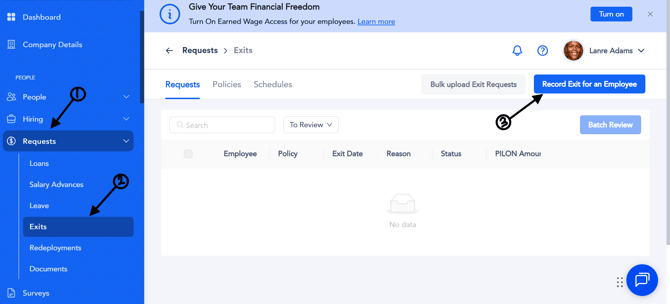
2. Navigate to **Requests**.
3. Select **Exit** from the dropdown menu.
4. Click **Record Exit for an Employee** in the top-right corner of the page.
5. Complete the required fields:
- **Employee** – Select the employee you want to exit.
- **Policy** – Choose the applicable exit policy.
- **Has the Exit Occurred?** – Select **Yes** if the employee has already left the company and you are recording the exit retrospectively. Select **No** if the employee has not yet left the company.
- **Exit Date** – Select the employee's exit date.
- **Send Email Notification** – Choose whether to notify the employee by email that they have been exited from the platform.
- **Record Payment in Lieu of Notice** – Select **Yes** to record a payment in lieu of notice or **No** if it does not apply. If **Yes** is selected, specify either:
- A percentage of the employee's gross earnings, or
- A fixed amount from the employee's gross earnings.
- **Reason** – Enter the reason for the employee's exit.
- **Note for Employee** – Add a message for the employee, if required.
- **Supporting Document (Optional)** – Upload any relevant supporting document.
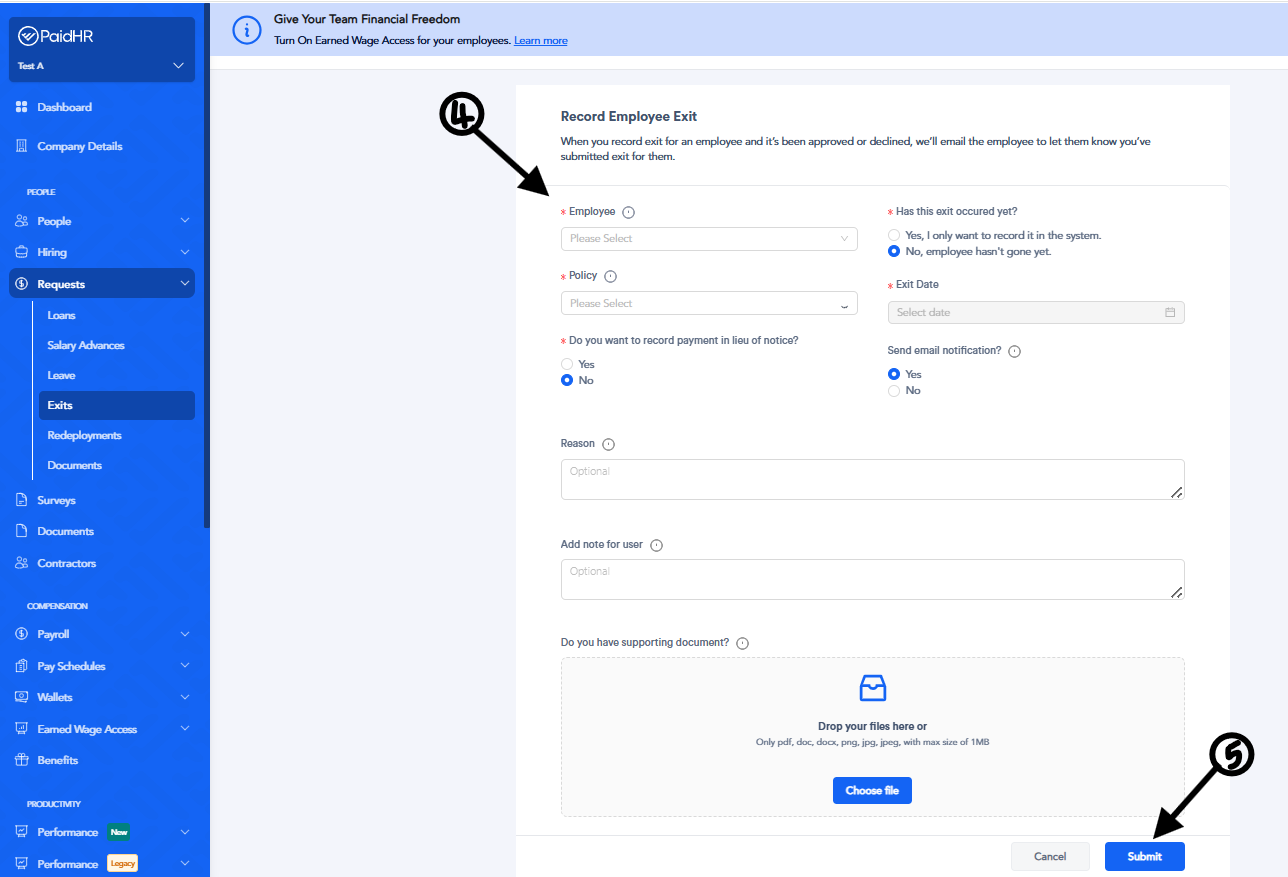
6. Click **Submit** to create the exit request.
7. Approve the exit request to complete the process.
The employee will be exited from the platform on the selected exit date. Once the exit is processed, the employee will become inactive and will appear under **Exited Employees** in the **People** module.
- [Getting started](https://support.paidhr.com/getting-started)
- [Admins: Start Here](https://support.paidhr.com/admins-start-here)
- [Employees: Start Here](https://support.paidhr.com/employees-start-here)
- [Payroll](https://support.paidhr.com/payroll)
- [Payroll Management](https://support.paidhr.com/payroll-management#main-content)
- [Payroll Changes](https://support.paidhr.com/payroll-management#payroll-changes)
- [Allowances](https://support.paidhr.com/payroll-management#allowances)
- [Statutory Remittance](https://support.paidhr.com/payroll-management#statutory-remittance)
- [Amend Payroll](https://support.paidhr.com/payroll-management#amend-payroll)
- [Cross-Border Payments](https://support.paidhr.com/cross-border-payments)
- [Earned Wage Access (EWA)](https://support.paidhr.com/earned-wage-access-ewa)
- [Loan Marketplace](https://support.paidhr.com/loan-marketplace)
- [Settings](https://support.paidhr.com/settings#main-content)
- [Confirmation](https://support.paidhr.com/settings#confirmation)
- [People](https://support.paidhr.com/people#main-content)
- [Onboarding](https://support.paidhr.com/people#onboarding)
- [Leave](https://support.paidhr.com/people#leave)
- [Exit](https://support.paidhr.com/people#exit)
- [Cantractor](https://support.paidhr.com/people#cantractor)
- [HRIS](https://support.paidhr.com/people#hris)
- [Request](https://support.paidhr.com/request#main-content)
- [Leave](https://support.paidhr.com/request#leave)
- [Exit](https://support.paidhr.com/request#exit)
- [Loan](https://support.paidhr.com/request#loan)
- [Performance Management](https://support.paidhr.com/performance-management#main-content)
- [Setting Up Performance Module](https://support.paidhr.com/performance-management#setting-up-performance-module)
- [Company Gaols](https://support.paidhr.com/performance-management#company-gaols)
- [Departmental Objectives](https://support.paidhr.com/performance-management#departmental-objectives)
- [Key Result](https://support.paidhr.com/performance-management#key-result)
- [Review](https://support.paidhr.com/performance-management#review)
- [Questionnaires](https://support.paidhr.com/performance-management#questionnaires)
- [Performance Management Glossary](https://support.paidhr.com/performance-management#performance-management-glossary)
- [Reports](https://support.paidhr.com/reports)
- [Benefits](https://support.paidhr.com/benefits)
- [Documents](https://support.paidhr.com/documents)
- [Assets](https://support.paidhr.com/assets)
- [Wallet](https://support.paidhr.com/wallet)
- [Time Tracking](https://support.paidhr.com/time-tracking)
- [Payslip](https://support.paidhr.com/payslip)
- [PaidHiring](https://support.paidhr.com/paidhiring)
- [Employee Wallet](https://support.paidhr.com/employee-wallet)
- [Disciplinary](https://support.paidhr.com/disciplinary)
- [Tasks](https://support.paidhr.com/tasks)
- [Loan](https://support.paidhr.com/loan)
- [Survey](https://support.paidhr.com/survey)
- [Salary Advance](https://support.paidhr.com/salary-advance)
- [Time & Attendance](https://support.paidhr.com/time-attendance#main-content)
- [Setting up Time & Attendance](https://support.paidhr.com/time-attendance#setting-up-time-attendance)
- Home
- Products
- Pricing
- Blog
- Company
[](http://paidhr.com)
**PaidHR Help Center**
[mailto:support@paidhr.com](mailto:support@paidhr.com)
Copyright © 2026, PaidHR