
Create a Requisition Type
- Log in as an admin.
- Click Request on the left menu, then click Requisitions.
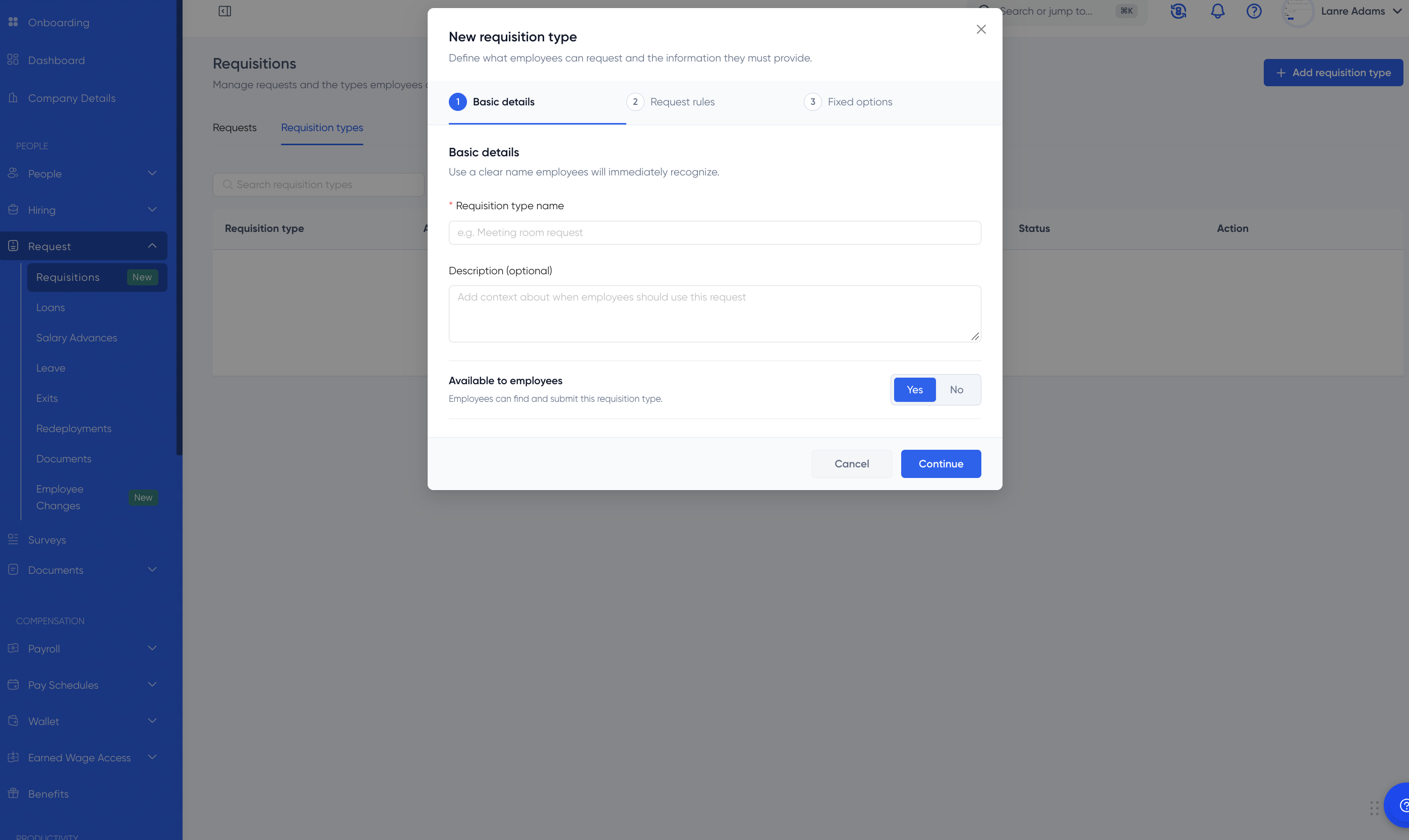
- Open the Requisition Types tab and click Add Requisition Type.
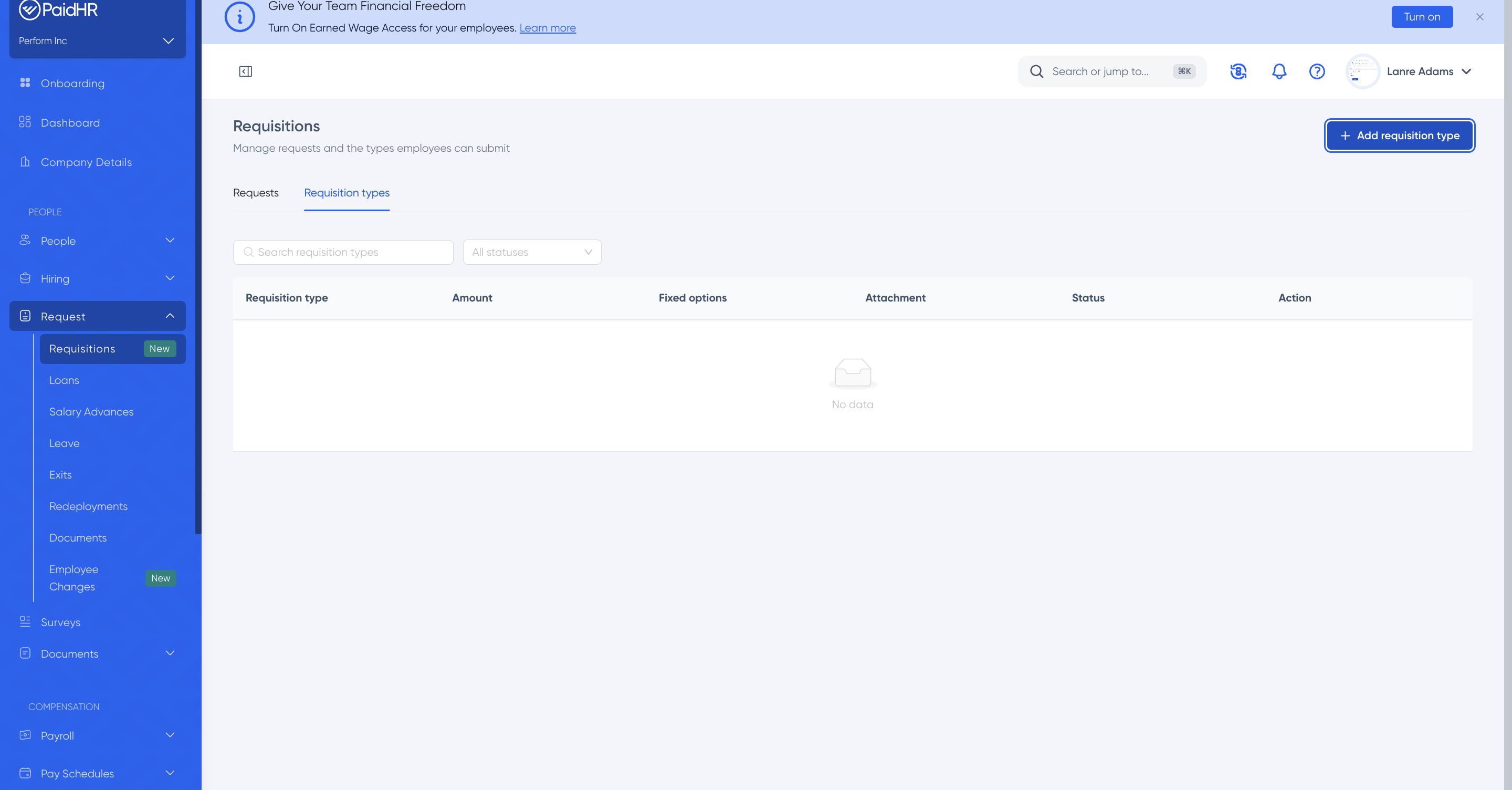
Step 1: Basic details
- Enter a Requisition Type name (required). Use a clear name that employees will recognize, such as “Hotel accommodation."
- Add a Description if you want to (optional).
- Under Available to employees, select Yes so employees can find and submit this requisition type.
- Click Continue.
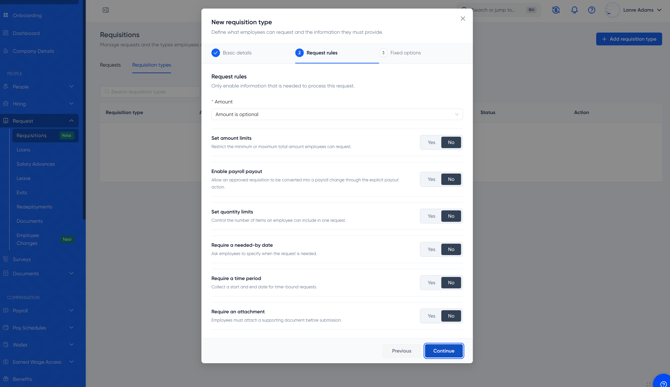
Step 2: Request rules
Only turn on the information you need to process the request.
- Under Amount, choose one of these:
- Do not collect an amount
- Amount is optional
- Amount is required
- Turn each of the following to Yes or No:
- Set amount limits: enter a minimum and maximum amount (both optional).
- Enable payroll payout: lets an approved requisition be converted into a payroll change when an authorized admin pays it out. Select a Payroll payable type (required), or click Create new payable. Only active, non-deduction payables can be used.
- Set quantity limits: enter a minimum and maximum number of items per request (both optional).
- Require a needed-by date: employees must say when the request is needed.
- Require a time period: employees enter a start and end date. You can also turn on Set duration limits to set a minimum and maximum number of days.
- Require an attachment: employees must attach a supporting document before they submit.
- Click Continue.
Step 3: Fixed options
- Under Use fixed options, select Yes if you want employees to choose one item from a list instead of typing their own. Click Add option to build the list.
- Turn on Allow an “Other” option if employees can enter an option that isn’t on the list.
- Click Save requisition type.
After you save
The requisition type appears in the Requisition types list. Employees can now raise requests of this type.